Using VBATrain.com Courseware with Excel 2007
If you are using Excel 2007, you can take the VBA Basics and the Trip Planner project by attending to alternative course instructions. These instructions are summarized in the following list. Full explanations follow later on this page.
Summary of alternatives to course instructions
- The Developer tab in the ribbon must be enabled.
- Save VB Project. In order to save an Excel workbook with a VB Project, you must either save the project as a macro-enabled Excel 2007 workbook (xlsm file extension) or as an Excel 97-2003 workbook (xls extension).
- The VB Editor can still be activated using Alt + F11. It can also be activated via the Developer tab. You can add a VB Editor button to the Quick Access toolbar.
- Recording or viewing a macro is done through the View tab.
- Forms toolbar controls are inserted using the Insert command on the Developer tab.
- Control toolbox controls are also inserted using the Insert command on the Developer tab.
- Text Box tool is accessed from the Insert tab.
- Alignment controls can be added to the Quick Access toolbar. (Course directions specify creating a custom toolbar.)
Show Developer tab
The Developer tab (think of a Ribbon tab as a big toolbar) is not enabled by default in Excel 2007. Here is how you enable it.
- Open Excel 2007.
- Click the Office Button in the upper left part of the Excel window.
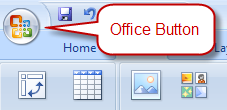
- Click the Excel Options button.

- Select Popular from the list at left.
- Check "Show Developer tab in the Ribbon".
 [Back to Top]
Saving an Excel Workbook that contains a VB Project
The default file format for saving an Excel 2007 workbook does not allow any macros to exist in the workbook. Hence, in order to save the workbook with macros, i.e., with a VB project, you can save it as either a
- Excel macro-enabled workbook (file saved with xlsm extension), or an
- Excel 97-2003 workbook (file saved with xls extension).
 [Back to Top]
Accessing the VB Editor
The Visual Basic Editor can be accessed in three ways in Excel 2007.
- Key combination Alt + F11 (same as previous Excel versions).
- Developer tab, Visual Basic button.
- By addtion of Visual Basic button to Quick Access toolbar.
Do the following to add the VB button to the Quick Access toolbar:
- Bring up the Excel Options dialog as described in the "Show Developer tab" section
- Select Customize from the list at left.
- Select All Commands from the top drop-down box.
- Scroll down and select Visual Basic from the list.
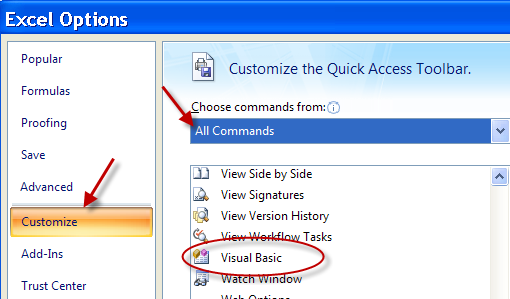
- Click the Add button and click OK.
[Back to Top]
View or Record a Macro
Viewing and Recording Macros can be accomplished through the both the View tab and the Developer tab. To Record or View a Macro, do the following:
- Select the View tab.
- Select Macros.
- Select View Macros or Record Macro.


- Or, select the Developer tab.
- Choose Macros to view, or choose Record Macro to record.
 [Back to Top]
Inserting Forms Toolbar Controls
Controls (e.g., buttons, listboxes) from the Forms toolbar in Excel 2003 are accessible in Excel 2007 via the Developer tab.
- Select the Developer tab.
- Select Insert.
- Choose from one of the Form controls.
 [Back to Top]
Inserting Control Toolbox Controls
Controls from the Control Toolbox in Excel 2003 are found in the Developer tab in Excel 2007.
- Select Developer tab.
- Select Insert.
- Choose one of the ActiveX controls.
 [Back to Top]
Inserting a Text Box
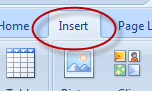
In former Excel versions, the tool for inserting a Text Box is found on the Drawing toolbar. In Excel 2007, the Text Box tool is located in the Insert tab.
- Select the Insert tab.
- Select the Text Box tool.
 [Back to Top]
Aligning Objects
In order to obtain all the Alignment tools (available in the Drawing toolbar in Excel 2003), you can add them to the Quick Access toolbar.
- Click the Office Button in the upper left part of the Excel window.
- Click the Excel Options button.
- Select Customize from the list at left.
- Select All Commands from the top drop-down box.
- Scroll down and select Align from the list.
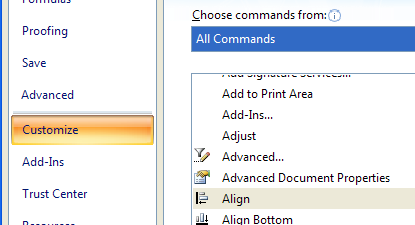
- Click Add and click OK. A little Align sub-menu that contains all the Alignment tools will be added to the Quick Access toolbar.
[Back to Top]
Trust Center and Enabling Macros
The default setting for Excel 2007 is to allow the opening of workbooks with macros after notifying the user. This is the setting I recommend. However, if you have an Excel installation that is not allowing macros to be enabled, then here is how you change the settings.
- Select the Developer tab.
- Select Macro Security.
- Select "Disable all Macros with notification." Excel will then tell you when a workbook has a macro in it, and will ask whether you want to proceed.

- Click OK.
[Back to Top]

